

As a system administrator or developer, managing storage efficiently in virtual machines is essential. If you’re using VMware ESXi to host an Ubuntu VM and need to expand the root partition due to increasing disk usage, this guide will help you. Follow our step-by-step process to extend your Ubuntu root partition (LVM-based) safely and effectively.
By the end of this tutorial, you will learn:
- How to rescan a virtual disk after adding space in VMware ESXi.
- How to expand the logical volume (LVM) and filesystem in Ubuntu.
This detailed guide is optimized for both beginners and experienced professionals looking to enhance their virtual infrastructure.
Why Expand the Root Partition in Ubuntu?
Running out of disk space on your Ubuntu server can cause critical issues, including service failures and data corruption. Whether it’s for:
- Hosting growing websites or applications.
- Storing logs, backups, or database files.
- Scaling system resources as business demands increase.
Expanding the root partition ensures your Ubuntu VM remains operational without downtime or data loss.
Let’s get started with the expansion process.
Step 1: Add Disk Space to the VM in VMware ESXi
- Log into the VMware ESXi dashboard.
- Power off the Ubuntu VM (recommended for safety, though not mandatory).
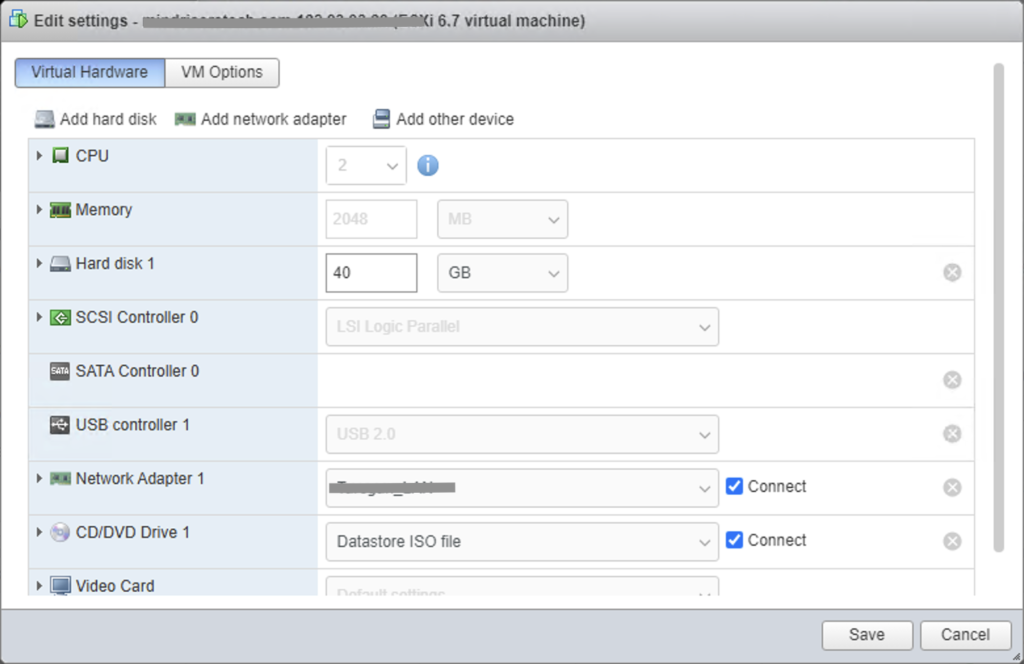
- Right-click the VM > Edit Settings.
- Increase the size of the virtual disk (e.g., from 40GB to 80GB).
- Save changes and power on the VM.
Now, your virtual disk has additional space, but the operating system doesn’t see it yet. Let’s proceed to the next steps.
Step 2: Verify Disk Space in Ubuntu
Log in to your Ubuntu VM and open a terminal. Run:
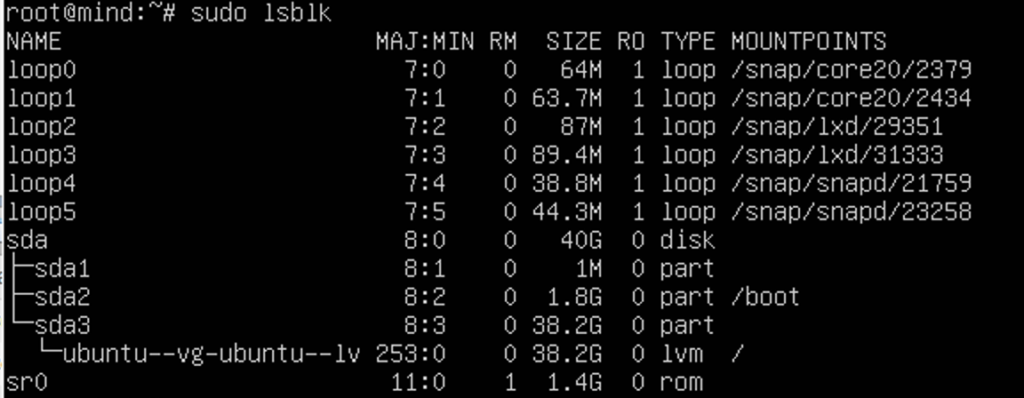
sudo lsblkThe output will show the disks and partitions:
sdais your primary disk.sda3is the partition where LVM resides.ubuntu--vg-ubuntu--lvis the logical volume.
At this point, the additional space may not appear under sda3. Let’s rescan the disk.
Step 3: Rescan the Disk to Detect New Space
To rescan the disk without rebooting, run:
echo 1 | sudo tee /sys/class/block/sda/device/rescanRecheck the disk layout:
sudo lsblkYou should see the new disk size reflected under sda.
Step 4: Expand the Partition Using growpart
To extend sda3 (the partition), use the growpart tool. Install it if not already present:
sudo apt update
sudo apt install cloud-guest-utils
Now extend the third partition:
sudo growpart /dev/sda 3Verify that sda3 now occupies the free space:
sudo lsblkStep 5: Resize the Physical Volume (PV)
Since the partition is extended, the Physical Volume (PV) must also be resized:
sudo pvresize /dev/sda3Confirm the free space in your volume group:
sudo vgsThis command will show the free space available in your ubuntu-vg volume group.
Step 6: Extend the Logical Volume (LV)
Now extend the logical volume (ubuntu--vg-ubuntu--lv) using the free space:
sudo lvextend -l +100%FREE /dev/ubuntu-vg/ubuntu-lvThis command allocates all available free space to the logical volume.
Step 7: Resize the Filesystem
Finally, resize the filesystem so that it can use the newly allocated space.
- If you are using the ext4 filesystem:
sudo resize2fs /dev/ubuntu-vg/ubuntu-lv- If you are using the XFS filesystem:
sudo xfs_growfs /Step 8: Verify the Changes
To confirm the root partition has been expanded, run:
df -h /The output will show the updated size of your root filesystem.
Conclusion
You’ve successfully expanded the root partition on your Ubuntu VM in VMware ESXi! This method ensures zero data loss and minimal downtime. As your business or application grows, you can repeat these steps to manage storage efficiently.
At ehostingserver.com, we provide reliable web hosting solutions, including virtual machine management tips like this. If you need expert assistance managing your cloud infrastructure or expanding resources, feel free to contact us.
Share this guide to help others streamline their VM management!
FAQs
1. Can I perform these steps without rebooting the VM?
Yes, all the steps can be done live, but it’s safer to reboot for consistency.
2. What if I don’t see the additional disk space in lsblk?
Rescan the disk using echo 1 | sudo tee /sys/class/block/sda/device/rescan.
3. Is this method safe for production servers?
Yes, when done carefully. Always take a backup before performing disk operations.
4. How do I identify my root partition and volume group?
Run lsblk and df -h to see disk usage and mount points.